How to Crop a Podcast Clip to Vertical on iPhone
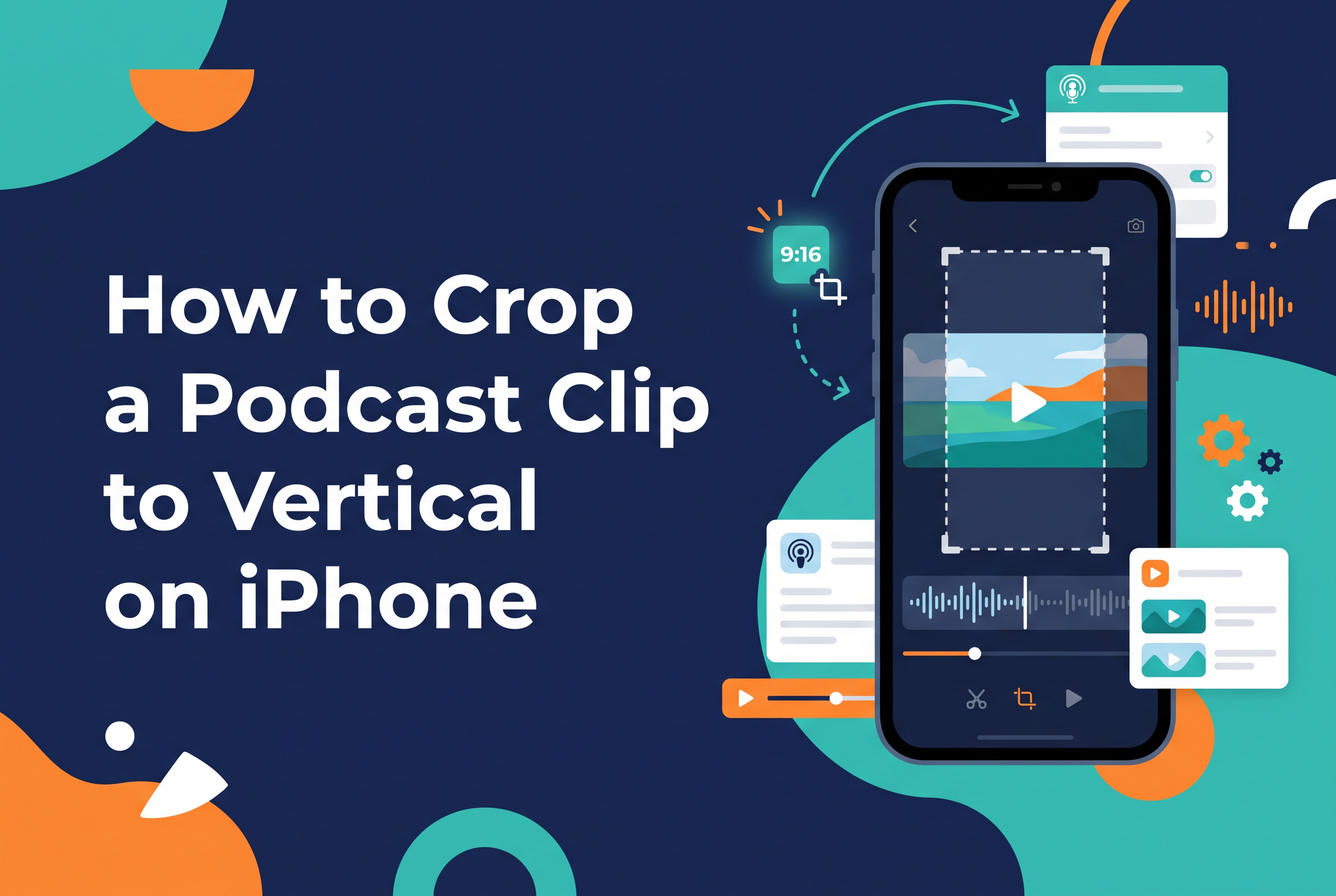
To crop a podcast clip to vertical on iPhone, open the video in Photos, tap Edit, tap the Crop button, choose the 9:16 aspect ratio, drag the frame over your speaker and tap Done. That takes about a minute and works for TikTok, Instagram Reels and YouTube Shorts.
The catch is what happens to a landscape podcast shot when you do it. A 16:9 frame has two people sitting a metre apart, and a 9:16 window is a narrow slice down the middle. Crop on autopilot and you get a clip of a microphone, half a face, or the gap between host and guest. This guide covers the built-in method first, then the reframing, safe-area and caption checks that make the clip watchable. It also answers two questions people search constantly: how to record a clip of a podcast on iPhone, and how to crop out certain parts of a video on iPhone.
Vertical means 9:16: what you're actually cropping
Vertical video for short-form apps means a 9:16 frame, which is 1080 × 1920 pixels. TikTok, Instagram Reels and YouTube Shorts all want that shape, so it is the target for every clip in this guide.
Your landscape podcast video is 16:9, so you are not rotating or stretching it. You are throwing most of it away. Cropping a 16:9 frame to 9:16 keeps only about a third of the width, which is why placement matters far more than the crop button itself.
Decide before you crop which person or moment the clip is about. A vertical frame can hold one face well. It can't hold a two-person sofa shot.
Crop a podcast clip to vertical in the iPhone Photos app
The Photos app can crop video to 9:16 with no extra download. Here is the sequence:
Open Photos and select the video.
Tap Edit, then tap the Crop button.
Tap the aspect ratio button and choose 9:16.
Drag and pinch to reposition the frame over your speaker.
Tap Done to save.
Cropping to 9:16 removes parts of the original frame, so save a copy if you want to keep the landscape version. The same Crop tool answers the other common question, how to crop out certain parts of a video on iPhone: pick a freeform or fixed ratio, drag the corners to cut out the unwanted edges, then tap Done.
To record a clip of a podcast on iPhone in the first place, you have two routes. If you are filming the show, use the Camera app in Video mode and trim the section you want afterwards. If the episode is already on your phone, play it, use the Photos trim handles to isolate the moment, and crop from there. For more on trimming, see How to Edit Video on iPhone: Trim and Split.
That's fine for a single speaker who stays still. It's a problem for a conversation.
Why a centre crop cuts off your guest (and how to reframe)
A plain centre crop fails on podcasts because the speaker is rarely in the centre of a wide shot. In a two-person show the host sits left, the guest sits right, and the centre of the frame is often a table, a plant or a gap.
Reframe around whoever is talking instead of cropping the middle. Then check the crop throughout the clip, not just at the first frame, because people lean, turn and gesture.
You have three workable options for two-person shows:
Follow the speaker. Position the 9:16 window over the active speaker and cut to the other person when they take over.
Pick one speaker per clip. Choose moments where one person carries the whole thought and crop for them.
Use a stacked layout. Put both people in the frame, one above the other, rather than cropping the centre.
Photos only does the first of these if you split the clip yourself into two segments and crop each separately. It's fiddly but it works. Scrub the finished clip end to end before you post, and look for the moment someone shifts out of frame.
Keep faces and captions in the safe area
In a vertical clip, keep the speaker's face in the upper-middle of the frame and put captions in a clear band below it. Apps draw their own buttons and text over your video, so the edges aren't yours.
Keep key text away from the bottom and right edges, where app controls such as like buttons, captions and account names tend to sit. A caption placed in the bottom strip will often be covered.
Burn captions into the video so they show for everyone, including people watching with the sound off, and make them large enough to read on a phone held at arm's length. Preview the finished clip in each app before posting, because the overlays differ between TikTok, Reels and Shorts. If you need a refresher on accuracy, How Accurate Are Auto Captions? A Creator's Checklist covers what to check, and How to Add Captions to iPhone Video walks through the steps.
Other ways to go vertical: rotate, zoom or stack
Cropping isn't the only route from horizontal to vertical, and rotating is the one people reach for wrongly. Rotating a landscape video turns it on its side. It doesn't make it vertical. The picture is still 16:9, just sideways, so use rotate only to fix a clip that was filmed at the wrong angle.
There are three real alternatives to a straight crop:
Zoom and reposition. Pinch in to enlarge the speaker and drag them into the upper-middle. This is a crop by another name and has the same limit: one position per clip.
Stack two people. Place the host on top and the guest underneath so neither is cut off. It works well for back-and-forth banter.
Letterbox. Fit the full landscape frame inside the vertical canvas with bars above and below. Nothing is lost, but the picture is small and often looks weak next to full-screen clips.
For talking heads, a tight crop on one speaker usually holds attention best. For conversation, stacking keeps both people visible.
Cut the clip from the full episode first
Cut the moment out of the full episode before you crop, because working on a trimmed clip is faster and keeps your files small. Cropping an hour of video to find 40 seconds is slow and easy to get wrong.
Pick clips that make sense with no context: a clear question and answer, a story with a payoff, or one sharp opinion. Short-form viewers decide in a couple of seconds, so start on the strongest line rather than the lead-in.
Trim the start and end tight, then crop. If you are turning a whole episode into many clips, How to Cut a Podcast into Short Clips lays out a repeatable workflow, and AI Clip Maker or Manual Clips: How Podcasters Choose helps you decide how much to do by hand.
FAQ: horizontal to vertical, rotating and cropping on iPhone
How do I make a video go from horizontal to vertical on iPhone? Open it in Photos, tap Edit, tap Crop, choose 9:16 and reposition the frame. This removes the sides of the picture rather than rotating it.
How do I rotate a video to vertical? Rotating turns the whole frame sideways and keeps the same shape, so use it only for clips filmed at the wrong angle. To get a true vertical clip, crop to 9:16.
How do I crop a landscape video to portrait on my iPhone? Use the Crop tool in Photos and select the 9:16 aspect ratio. Drag the frame over the person speaking and check the whole clip before saving.
The full set of questions is also in the FAQ below.
Where Cutscript fits: coming soon to the App Store
SAIL Corp is building Cutscript, an iPhone and iPad app that edits video by editing the transcript, automatically cuts filler words and adds captions, all on device.
For podcast clips it helps at two points in this workflow: tightening the spoken moment you want to share, and getting captions onto the finished vertical clip. You can read how it compares in Cutscript vs CapCut for Removing Filler Words and see the approach in Edit Video by Editing Text on iPhone: A Cutscript Guide.
Cutscript is coming soon to the App Store and isn't available to download yet. The waitlist is open at sail.care/cutscript.
Crop to the speaker, then join the Cutscript waitlist
The crop button is the easy part. A vertical podcast clip works or fails on where you put the 9:16 window: on the active speaker, with the face high and captions clear of the app controls. Do that in Photos today. When you want transcript-based trimming and captions on the same phone, join the Cutscript waitlist at sail.care/cutscript. It's coming soon to the App Store and isn't live yet.
For a related editing task, see How to Edit a Two-Person Podcast Clip on iPhone. Join the Cutscript waitlist.