Cutscript vs CapCut for Removing Filler Words
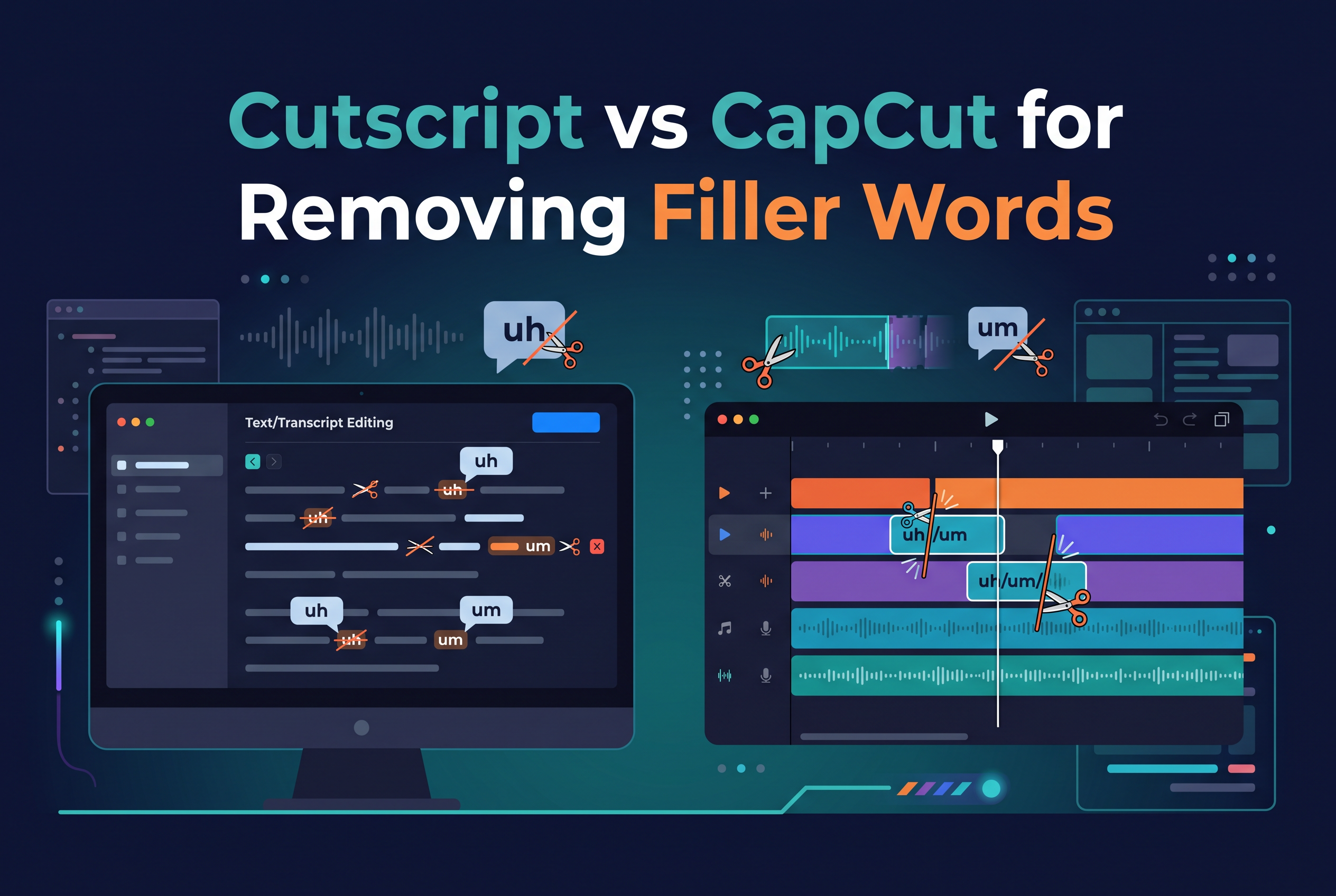
CapCut and Cutscript both cut "um" and "uh" from talking-head video, but they get there differently. CapCut detects filler words while it generates auto-captions. Cutscript lets you delete words from the transcript and the video follows. Cutscript is not on the App Store yet, so this is a workflow and plan comparison, not a speed test, and I'm not naming a speed winner.
If you already use CapCut, don't panic-switch. If you record podcasts or short-form video on an iPhone or iPad and hate fiddling with timelines, the waitlist is worth joining. Here is how each approach works, what each costs, and which kind of creator each suits.
Cutscript vs CapCut at a glance (and a prelaunch disclosure)
CapCut is an established editor with a filler-word detection option inside its auto-captions flow. Cutscript is an upcoming iPhone and iPad app that edits video by editing the transcript, and you can't download it yet.
SAIL Corp is building Cutscript. It cuts filler words automatically, adds captions, and does the work on device. All of that describes the planned app, so the waitlist at sail.care/cutscript is the only way in for now.
CapCut is the one you can open today. The comparison below sticks to documented workflow and plan differences, because nobody can fairly crown a speed winner for an app that hasn't shipped.
How CapCut removes filler words: where it lives and what the steps are
Yes, CapCut can find filler words such as "um," "uh" and "you know." It does so as part of generating auto-captions, not as a standalone button.
CapCut's own guide for desktop describes the route: open Captions, choose Auto captions, pick a language, switch on the filler-word option, then generate. Detected words are highlighted in the transcript. You review them and choose whether to delete or adjust them before exporting. CapCut's guide labels the toggle "Identify filter words", so look for that wording, not the phrase "filler words".
On a phone, some guides describe the same toggle in the captions menu on iOS and Android, but availability can vary by app version. Open the captions menu in your own version and check whether the option is there before you build a workflow around it.
In practice: you generate captions first, filler words get flagged inside that caption pass, and you decide what to cut.
CapCut's plans: what's free, what may need Pro, and why it varies by platform and version
CapCut's core editing is free, but sources disagree on whether filler-word removal sits behind Pro. Check your own app before you rely on it.
CapCut's US pricing lists Free at $0 and Pro at $19.99 a month or $179.99 a year. Pro adds premium templates, AI features, 1,200 monthly AI credits and 1 TB of cloud storage. Prices and offers can vary by region and account, so the figure you see in the UK may differ.
On the filler-word feature specifically, one source describes it as available through a free trial while another reports Pro is required. The honest reading is that it depends on platform and version. Look for a Pro badge or a trial prompt next to the option before you commit a batch of episodes to it.
Treat any single price you read online, including this one, as a starting point, and confirm it inside the app.
How Cutscript approaches it: edit the transcript, and the video follows
Cutscript turns your video into text. Delete a word from the transcript and that moment is cut from the video. Filler words and long pauses are found and cut for you, and you can put any of them back with a tap. Captions are added at export.
That is the whole idea. Instead of scrubbing waveforms to find an "um", you work in text. It is built for iPhone and iPad, free with a 3-minute limit, with Pro at about £2.50 per month.
What it doesn't have yet is a public release. There is no App Store listing, so there is nothing to download and no hands-on review to point you to. If you want the practical background on the task itself, our guide to removing filler words from video on iPhone covers the general method, and the captions guide covers the caption side.
The text-first approach isn't unique to Cutscript. Other tools edit video from a transcript too, and Descript is the best-known name in that category. Cutscript's pitch is narrower: a lightweight, on-device iPhone and iPad version of the idea at a low monthly price.
Side by side: workflow, control, platform and cost
The real difference is where the filler-word step sits. In CapCut it's inside a caption pass. In Cutscript it's inside the transcript itself.
| CapCut | Cutscript | |
|---|---|---|
| Filler-word approach | Detection toggle in auto-captions; review highlighted words | Edit the transcript; the video follows; filler words cut automatically |
| Starting point | Generate captions first | Work in the text from the start |
| Availability | Available now | Prelaunch, waitlist only |
| Platform | Desktop and mobile; feature availability varies by version | iPhone and iPad |
| Free tier | Core editing free; filler-word access may depend on version | Free with a 3-minute limit |
| Paid | Pro at $19.99/month or $179.99/year (US pricing) | Pro about £2.50/month |
| Speed | Not compared | Not compared |
On control, CapCut gives you a full video editor around the filler-word step: effects, templates, a timeline. Cutscript focuses on the transcript, so it trades breadth for a simpler path from recording to a clean cut.
On cost, the price gap is large on paper. But CapCut Pro bundles far more than filler-word handling. Compare what you would actually use, not the headline number.
Which should you use? Picking by the kind of video you make
Use CapCut if you need to clean filler words today and already edit there. Join the Cutscript waitlist if your work is spoken-word video and you want to edit by reading and deleting text.
Pick CapCut now if you want effects, templates and a full timeline, or if you edit on a desktop. Check that the filler-word toggle appears in your version and whether it asks for Pro.
Wait for Cutscript if you record podcasts or talking-head clips on an iPhone or iPad and your time goes on trimming pauses and verbal tics. A transcript-first editor suits that kind of footage, and it pairs naturally with cutting a podcast into short clips.
If you're on the fence, keep using CapCut and add your name to the waitlist. It costs nothing, and you can compare the two on your own footage once Cutscript launches. That's the only fair way to judge speed.
Questions creators ask: CapCut alternatives, text editing in CapCut and YouTube editing
Is there a better alternative to CapCut? It depends on the job. For filler words in spoken video, text-based editors are the closest alternative. Descript is established, and Cutscript is an upcoming iPhone and iPad option. "Better" is not something I can claim for a launch-pending app.
Is there a text remover in CapCut? CapCut's relevant feature is transcript-based. It highlights detected filler words in the caption transcript so you can delete or adjust them. That is different from removing on-screen text from footage.
Why are people leaving CapCut? There is no single verified reason in the material behind this post. Pricing tiers and feature gating by plan are common complaints about editing apps generally, which is why checking your version's Pro prompts matters.
Is CapCut good for editing YouTube videos? It's a capable editor with captions and templates, and filler-word detection is one tool among many. Whether it beats a transcript-first workflow depends on how much of your footage is talking.
Join the Cutscript waitlist and compare on your own footage
CapCut handles filler words today through its caption flow, and it's a fair choice if you're already in it. Cutscript from SAIL Corp is the text-first alternative for iPhone and iPad, but it isn't on the App Store yet. Keep editing where you are and reserve a place. Join the waitlist at sail.care/cutscript, then run the same episode through both and judge the speed yourself.