How to Remove Filler Words from Video on iPhone
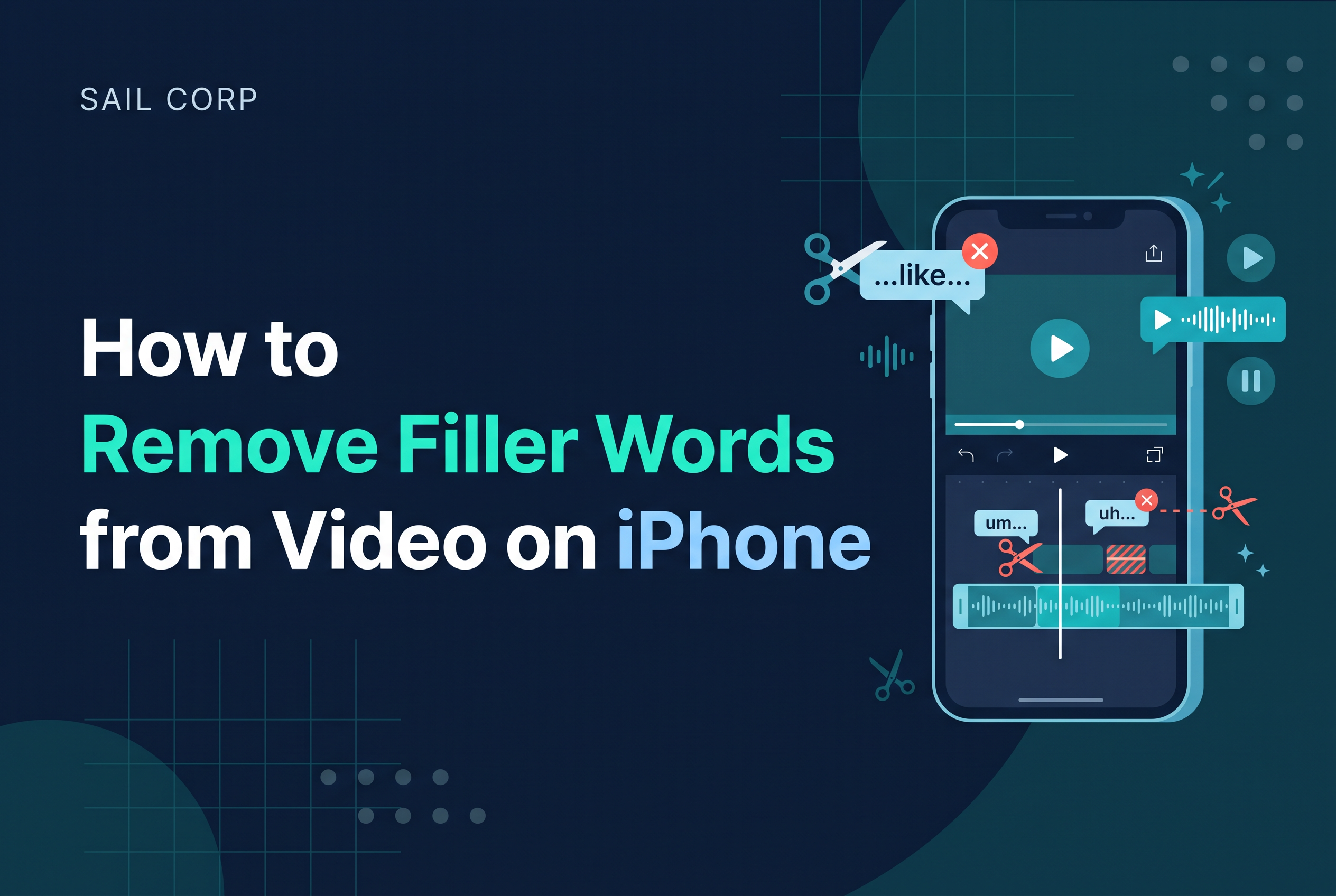
To remove filler words from video on iPhone, transcribe the clip, find the "ums" and "uhs", cut them, then listen back to every cut before you export. The cutting takes seconds. The reviewing is where a tight edit is won or lost.
If you record talking-to-camera video on your phone for a podcast clip or a short-form post, you already know the problem. A take that felt confident sounds hesitant when you watch it back. You don't need a timeline editor to fix that, but you do need to know what you're cutting and what each cut does to the sentence around it.
This post covers what counts as a filler, three ways to remove them on an iPhone, a worked before-and-after, and a review routine that catches the problems automatic tools leave behind.
What counts as a filler word (and why it isn't the same as silence)
A filler word is a spoken hesitation: "um", "uh", "er", and often "like" or "you know" when they carry no meaning. A silence is a gap with no speech at all. They are different problems, and tools that fix one rarely fix the other.
Silence removal shortens quiet gaps. Filler removal cuts sounds you actually made. Silence detection won't usually catch an "um" because an "um" is speech, not silence. So if you run a silence trimmer and the ums are still there, nothing is broken. You used the wrong tool.
The distinction matters for pacing too. A filler is almost always safe to question. A pause is different: it can carry emphasis, let a joke land or give a listener a breath. Treat the two separately and you'll make better calls on both.
This post is about filler words only. Handle long pauses in a separate pass.
Three ways to remove filler words from a video on iPhone
There are three routes, and the right one depends on how much control you want over each cut.
1. Manual trimming in a standard video editor. Scrub the timeline, find each "um", split the clip either side and delete the slice. It works in any editor and gives you full control. It's also slow, and finding a half-second sound by ear is fiddly on a phone screen.
2. Auto-captions with filler detection, such as CapCut. Apps like CapCut offer captioning tools with filler detection to help identify unwanted hesitations. Review the highlighted words, delete the ones you want gone, then export. So yes, CapCut can get rid of filler words. Treat the highlight as a suggestion, not a verdict, and check each one.
3. Text-based editing. You edit the transcript and the video follows. Descript made this style popular on desktop: delete a word in the text and the matching footage is cut. Cutscript, covered below, is built around this approach for iPhone and iPad.
One rule applies to all three: automatic detection finds candidates, and you approve them. Whichever route you pick, the review step below is not optional.
Illustrative before and after: one sentence, three cuts
Here is a made-up sentence, used purely to show what can go wrong. You record: "So, um, the thing about this, uh, is that it's actually, um, much quicker than it looks."
Cut one, everything removed. "So, the thing about this, is that it's actually, much quicker than it looks." The words read fine on paper. But if the three cuts were tight, the delivery now sounds clipped. There's no breath between "so" and "the thing", and the rhythm feels rushed.
Cut two, the middle "uh" kept. "So, the thing about this, uh, is that it's actually, much quicker than it looks." Here the "uh" sits right before the key claim. It works like a small drumroll. Leaving it in sounds human.
Cut three, fillers removed but one cut misplaced. If your cut after "actually" clips the end of that word, you get "actual" followed by "much quicker". The meaning survives and the edit still sounds wrong.
Same sentence, three outcomes. Removing the word is one decision. Making the join sound natural is another, and only the second takes judgement.
How to review each filler cut: meaning, audible jumps and pacing
Review every cut against three checks, in this order.
Meaning. Read the sentence without the filler. Does it still say what you meant? Some "likes" and "you knows" do real work, such as hedging a claim or softening a comparison. If removing one changes the sense, put it back.
Audible jumps. Play each cut in both audio and picture. On the audio side, listen for a click, a clipped neighbouring word or a change in room tone at the join. On the picture side, a cut in a continuous talking-head shot can show as a visible jump: your head shifts, your mouth snaps to a new position. A poorly placed audio edit can click or clip the next word (video-editing guidance, 2026). If the jump distracts, hide it with a cutaway, a caption card or a punch-in on the next clip.
Pacing. Cutting too much makes speech feel rushed or robotic and strips out pauses that carry emphasis. Play the whole clip at normal speed after your cuts, not just the joins. If you've stopped sounding like yourself, you've over-edited.
A practical routine: one pass to remove obvious fillers, one pass listening only for joins, and one final pass watching with the sound off to spot visual jumps. Three short passes beat one long, careful one.
When to leave a filler in
Leave a filler in when it does a job. Three cases come up again and again.
First, the hesitation before a punchline or a surprising number. Cutting it removes the beat that sets the line up.
Second, a filler that bridges a cut you can't hide. If removing an "um" would leave a visible head-jump in a single locked-off shot and you have no cutaway, the filler is the lesser evil.
Third, a filler that makes you sound like a person. A clip with every hesitation scrubbed out can feel oddly smooth, almost synthetic. Aim for tighter, not perfect.
A good test: if you'd notice the cut but wouldn't have noticed the "um", keep the "um".
Where Cutscript fits: on-device, text-based editing (join the waitlist)
Cutscript is an upcoming iPhone and iPad app from SAIL Corp that edits video by editing the transcript.
For the review workflow above, the text-based approach helps in a practical way. You can read the sentence, see where a filler sits and judge meaning before you decide, instead of hunting for a half-second sound on a timeline. It's aimed at creators who want a tighter edit without learning a timeline editor.
Cutscript isn't out yet, so the way to get it is to join the waitlist at sail.care/cutscript.
Whatever tool you use, keep the same discipline: let the software find the fillers, and make your own call on each cut.
Cut the ums, then check every join
Removing filler words from video on iPhone is quick. Making the result sound natural is the real work. Treat fillers and silence as separate jobs, review each cut for meaning, audible jumps and pacing, and keep the hesitations that earn their place. If you want a text-based way to do that on your phone, all on device, join the Cutscript waitlist at sail.care/cutscript.