How to Cut a Podcast into Short Clips
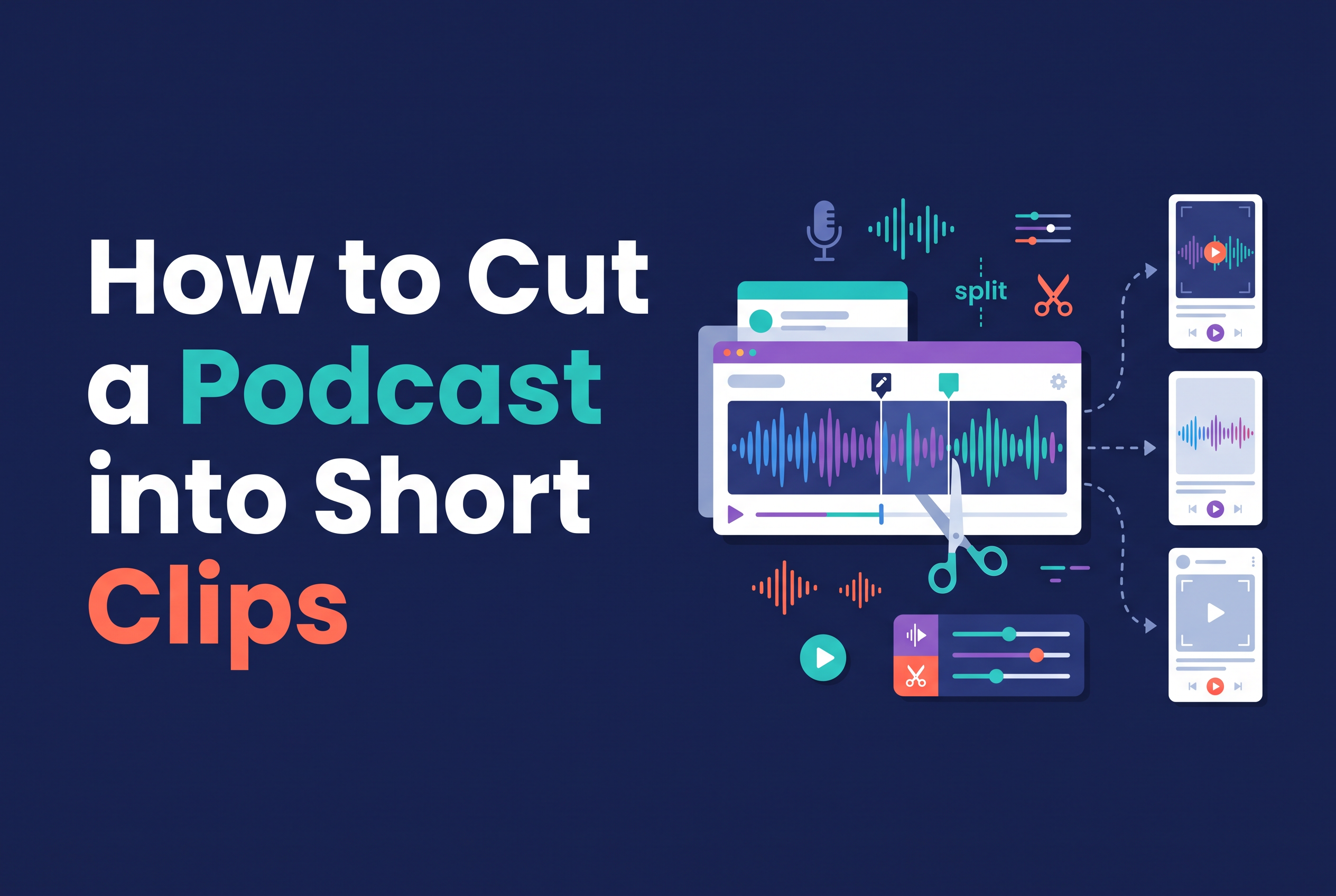
To cut a podcast into short clips, pick a self-contained moment, trim it from the strongest line to the payoff, reframe it to 9:16, add captions and check it before you post. That five-step loop works whether you edit by hand, use an auto-clip tool or edit through the transcript.
Most solo podcasters don't have a clipping problem. They have a choosing problem. A 60-minute episode contains maybe five moments that work on their own, and the rest only make sense if you heard the previous ten minutes. This guide covers the workflow, three ways to run it (a manual editor, CapCut's Long Video to Shorts and Cutscript, which is prelaunch), and what to do if your podcast has no video at all.
Why short clips matter for a podcast (and what makes a good one)
Short clips matter because they are the only part of your podcast a stranger can sample in under a minute. Reels, TikTok and YouTube Shorts all reward vertical video, and a clip is the cheapest way to put your voice in front of people who have never heard the show.
A good clip does three things. It opens on a hook, with no warm-up. It makes one point, tells one story or lands one joke. And it ends when that point is finished, not when you ran out of breath. If a clip needs the viewer to know who your guest is or what you said earlier, it isn't a clip yet.
Think of each clip as a tiny standalone episode. If you wouldn't share it with a friend who has never heard of your podcast, don't post it.
Step 1: Pick moments a stranger can follow without context
Pick moments that make sense to someone who joined at second zero. Scan the transcript or scrub the episode for a complete story, a practical tip, a surprising opinion or a funny exchange.
Use a simple test: read the first sentence cold. If it starts with "and that's why he did it" or "like I said earlier", skip it or find a cleaner starting point. Good picks usually have a question and an answer inside them, or a setup and a payoff.
Shortlist three to five moments per episode, then cut the weakest. Fewer, sharper clips beat posting everything you can extract. If you want a head start, listen back at 1.5x speed with a notepad and jot down timestamps whenever you laugh, nod or stop to think.
Step 2: Trim tightly, starting on the strongest line and ending on the payoff
Trim so the clip starts on the strongest line and ends the moment the thought is complete. Cut the "so, um, what I wanted to say was" run-up and the trailing "yeah, anyway".
About 30 to 60 seconds is a practical target for most podcast clips. It's a guide, not a rule: a tight 20-second joke beats a rambling 50-second answer. Let the content set the length.
Two trimming habits pay off. First, start a beat before the key word rather than mid-sentence, so the audio doesn't feel clipped. Second, remove long pauses and filler inside the clip, not just at the edges. If filler words are the main thing slowing you down, our guide on how to remove filler words from video on iPhone walks through it.
Step 3: Reframe to 9:16, add captions and check before posting
Reframe to 9:16 vertical, add large synced captions and preview each clip before you export it. This is where most clips quietly fail.
Reframe. Export at 9:16 for Reels, TikTok and Shorts. Keep the active speaker's face in frame. For a two-person conversation, follow whoever is talking or use a split layout.
Caption. Many viewers scroll with the sound off, so captions carry the clip. Use large, high-contrast text, keep it synced to the speech and place it away from the edges and the platform buttons. Proofread names and technical terms, because auto-captions regularly mangle them.
Check. Before posting, watch the opening, the speaker framing, the caption timing and the ending. Then export each clip as its own file. Thirty seconds of checking saves you from posting a clip with a clipped first word or a caption sitting under the Like button.
Three ways to do it: manual editor, auto-clip tool (CapCut Long Video to Shorts) or text-based editing (Cutscript, prelaunch)
There are three realistic routes, and none of them wins on speed for every creator. I haven't timed them against each other, so the comparison below covers how each one works, not which finishes first.
Manual editor. Any timeline editor gives you full control over cuts, framing and caption styling. You choose every moment yourself. The trade-off is that you do every step yourself too, and a full editing suite has a learning curve.
Auto-clip tool: CapCut's Long Video to Shorts. This tool finds highlights in a long video and generates short clips automatically. You can choose clip duration, use vertical reframing with subject tracking, add auto-captions and caption templates, then review and edit the clips before exporting. CapCut's official pages describe the tool as free, but available features and limits can vary by account or region. One official regional page lists a limit of 3 hours and 10 GB per upload, so check the tool in your own account for current limits. It needs video input, and its suggestions are still suggestions: you decide whether a stranger could follow each one.
Text-based editing: Cutscript (prelaunch). Cutscript is an upcoming app for iPhone and iPad from SAIL Corp that edits video by editing the transcript. It removes filler words and creates captions automatically from the script. It isn't on the App Store yet, so you can't download it today, but you can join the waitlist at sail.care/cutscript. The 3-minute free limit suits short clips well, since a clip is a fraction of that.
| Manual editor | CapCut Long Video to Shorts | Cutscript (prelaunch) | |
|---|---|---|---|
| How you choose moments | Yourself | Tool suggests highlights, you review | Yourself, by reading the transcript |
| Editing method | Timeline | Review and edit generated clips | Edit the text |
| Captions | You build them | Auto-captions and templates | Added automatically |
| Filler words | Cut by hand | Not stated on its official page | Cut automatically |
| Availability | Depends on editor | Free per official pages, limits vary | Waitlist only, not on the App Store |
If you're comparing the wider field of clip makers such as Opus Clip, Descript or Riverside, judge them on the same criteria: who picks the moment, how you trim, whether captions are included, what the free tier limits, and whether it works on the device you edit on. A podcast clip maker with AI can find candidates, but only you know which moment represents your show.
How to turn a podcast with no video into clips, and how to clip a Spotify episode
To turn an audio-only podcast into clips, you need something to look at, because Reels, TikTok and Shorts are video platforms. The usual options are an audiogram (a waveform or animated bars over a branded background), your show artwork with captions on top, or a still of the guest with moving captions.
Whichever you choose, the captions do the heavy lifting. Put the words on screen, keep the background simple and make the text big enough to read on a phone. Many free tools make audiograms with captions, so start with whatever you already have installed and check the free tier's limits before committing.
To clip a Spotify episode, work from your own source file rather than from the Spotify app. If you published the episode, you already have the original audio or video. Cut your clip from that file, then upload the finished vertical video to each platform. If you're clipping someone else's show, get permission first, because the audio is theirs.
To convert a podcast to a video, drop the audio into any editor, add a background or your recorded footage, generate captions and export at 9:16 for clips or 16:9 for a full YouTube upload.
Start with one clip and join the Cutscript waitlist
The workflow matters more than the tool: choose a moment a stranger can follow, trim from the strongest line to the payoff, reframe to 9:16, caption it and check it. This week, cut one clip from your last episode by whichever method you already have. If you'd rather edit by editing text on an iPhone or iPad, with filler words cut and captions created from the script, join the Cutscript waitlist at sail.care/cutscript. It's prelaunch, so the waitlist is the way in.