Edit Video by Editing Text on iPhone: A Cutscript Guide
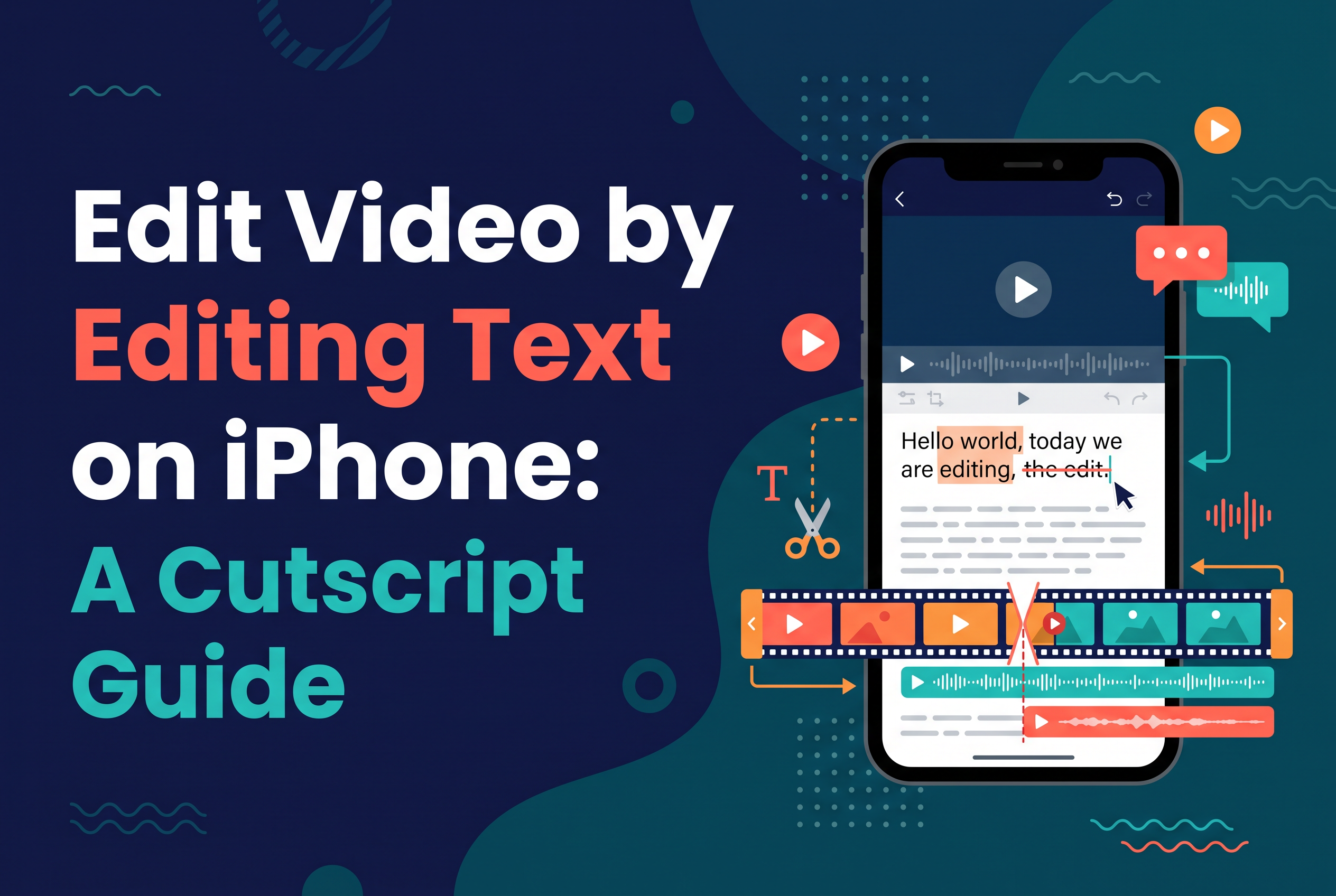
To edit video by editing text on iPhone, you transcribe the speech, then delete words in the transcript so the matching stretch of video and audio is cut. You don't drag a timeline or scrub for the exact frame where you said "um". Cutscript is SAIL Corp's upcoming iPhone and iPad app built around this idea, with automatic filler-word cuts and captions, all on device. It is not in the App Store yet, and you can join the waitlist at sail.care/cutscript.
If you record podcast or talking-head video on your phone, you already know the problem. Recording is easy. Cutting is where an hour disappears. This guide explains how transcript editing works in principle, how filler-word removal and burned-in captions work, and where a human still needs to check the result.
The short answer: delete the words, and the video follows
Text-based editing treats your transcript as the timeline. Every word in the transcript is tied to a timestamp in the recording, so deleting a word or a sentence removes the matching span of video and audio together.
That's the whole trick, and it changes how you work. Instead of listening for a flubbed line and hunting for it on a waveform, you read the transcript, spot the line, and delete it. Reading is faster than listening. A twelve-minute ramble becomes a skim.
Three things make it work: an accurate transcript, word-level timestamps, and a cut that lands cleanly between words. Everything else in this guide is a variation on those three.
If you're looking for the best text-based video editing apps for iPhone in 2026, judge them on those same three points, plus whether the processing happens on your phone or in the cloud. Descript is the best-known name in this style of editing. Its iPhone listing, AI Video Editor for Descript, requires iOS 17 or later and includes one free edit before a subscription is needed (App Store listing, 2026). CapCut is strong for timeline editing and social templates, but it's built around the timeline rather than the transcript. Cutscript is the on-device, transcript-first option coming to iPhone and iPad.
An illustrative podcast clip: from a rambling take to a tight cut
Here's a hypothetical clip, to show the mechanics. Say you record a 90-second answer on your iPhone, and the transcript reads:
"So, um, the thing about, you know, the thing about launching a podcast is, uh, you really want to, like, start with a clear audience. I mean, start with one person. Sorry, let me say that again. Start with one listener you can picture."
The good take is the last sentence. In a transcript editor you select everything up to "Sorry, let me say that again", plus the false start, and delete it. What remains is: "Start with one listener you can picture." The video and audio for the deleted words are gone, and the speaker appears to say the clean line in one go.
Now the second pass: the stray "um" and "you know" inside any sentence you kept. Delete those words and the picture jumps slightly at each cut, which is normal in talking-head video. Most short-form creators lean into it with tight framing and captions.
The point is the workflow. You read, you delete, you watch the result. You're editing a document, and the video is the output.
How to remove spoken words from a video by editing the transcript
To delete words from a transcript and cut the video on iPhone, the editor follows four steps behind the scenes. This is the general method used by transcript-based editors, not a description of any one app's internals.
Transcribe the speech. Speech recognition turns the audio into text and assigns each word a start and end time.
Map words to media. Because every word has a timestamp, the editor knows exactly which frames and audio samples belong to it.
Cut the span. When you delete a word or phrase, the editor removes that span from the video and audio together, so picture and sound never drift apart.
Smooth the join. Good editors leave a tiny margin or a short fade at the cut so you don't hear a click or lose the start of the next word.
Note what this isn't. It removes spoken words from the footage you recorded. It doesn't remove text that appears on screen, such as a sign in the background or a graphic baked into the video. Those are pixels, not speech, and a transcript knows nothing about them.
Two habits help. First, fix transcription mistakes before you cut, because a mis-transcribed word can still be deleted but is harder to find. Second, play back every join. A cut that looks fine in text can clip a breath or a consonant.
How automatic filler-word cuts work (and where they need a human check)
Automatic filler-word removal finds likely fillers in the transcript and cuts the matching spans for you. The usual sequence is: transcribe with word timestamps, flag words such as "um" and "uh", cut those spans from audio and video together, then update the timeline and captions to match the shorter edit.
The hard part is judgement. "Um" and "uh" are safe. Words like "like" and "you know" are not, because they're filler in one sentence and meaningful in the next. "I like this mic" should keep its "like". Some tools also flag repeated words and false starts, which is useful but riskier.
So treat automatic cuts as a first pass, not a finished edit. Transcription errors can cause a filler to be missed or a cut to land in the wrong place, and an over-eager pass can leave speech sounding breathless. Review what was removed before you export, and undo anything that changed the meaning.
A practical rule for podcasters: let the tool take the obvious "um" and "uh" cuts, then do the contextual ones, like "you know" and "I mean", by hand in the transcript.
How to add captions to your own video on iPhone (burned-in captions, not playback subtitles)
To add captions to a video on iPhone, you generate text from the speech and render it onto the picture, so the words are part of the exported video. These are burned-in captions. They differ from the subtitles you switch on in a video player, which are a separate track that only appears if the player supports it.
For your own short-form clips, burned-in is usually what you want. Captions travel with the file to any platform, and they show even when the viewer has the sound off, which is how a large share of short video gets watched.
The transcript makes this fast. Once you've cleaned it, the same words and timestamps drive the captions. Cut a filler word and its caption disappears with it, so the text never goes out of sync with the speech. CapCut offers auto captions that can be edited on the timeline, but it also provides transcript-based editing, so transcript-driven editing is not absent.
Check two things before you post: spelling of names and jargon, and line length, so captions stay readable on a phone screen.
Why on-device matters for creators, and where Cutscript fits
On-device editing means the transcription and cutting happen on your iPhone or iPad rather than on a remote server. For creators, that matters for three practical reasons.
Privacy. Unreleased episodes, client footage and guest conversations stay on your phone while you edit.
Speed to first cut. You can edit where you recorded, on the train or between interviews, and you don't wait on an upload.
Fewer moving parts. You don't push a file to a service and pull it back.
Cutscript is SAIL Corp's app for exactly this. It edits video by editing the transcript, automatically cuts filler words and adds captions, all on device. It's coming to the App Store for iPhone and iPad. It will be free with a 3-minute limit, and Pro will cost about £2.50 a month.
Here's how it sits against the options creators mention most:
| Criteria | Cutscript | Descript iPhone app | CapCut |
|---|---|---|---|
| Core editing style | Transcript-first | Transcript-based; the main product is on desktop and web | Timeline-based, with social templates |
| Filler-word cuts | Automatic | Not covered here | Not covered here |
| Captions | Automatic | Not covered here | Auto captions |
| Where it runs | On device | Not covered here | Not covered here |
| Availability | Waitlist, not yet released | On the App Store (iOS 17 or later) | On the App Store |
| Price | Free to 3 minutes, Pro about £2.50 a month | One free edit, then a subscription | Not covered here |
If you cut long-form podcast video and want to edit by reading rather than scrubbing, Cutscript is the one built for that on a phone.
Join the Cutscript waitlist: what's coming for iPhone and iPad
Cutscript isn't downloadable yet. The waitlist is the way to be first in line when it reaches the App Store.
At launch, expect transcript-based video editing on iPhone and iPad, automatic filler-word cuts, burned-in captions, and on-device processing. The free version has a 3-minute limit, and Pro is about £2.50 a month for longer videos.
It's built for UK podcasters and short-form creators who record on their phone and are tired of dragging clips around a timeline. Join the waitlist at sail.care/cutscript.
Join the Cutscript waitlist and stop dragging timelines
Editing video by editing text is the faster way to cut talking-head footage, because reading a transcript beats scrubbing a waveform every time. Automatic filler-word cuts and burned-in captions come from the same transcript, so one clean edit does three jobs. Cutscript brings that to iPhone and iPad, on device. Put your name down at sail.care/cutscript and you'll hear when it lands in the App Store.