How to Edit a Two-Person Podcast Clip on iPhone
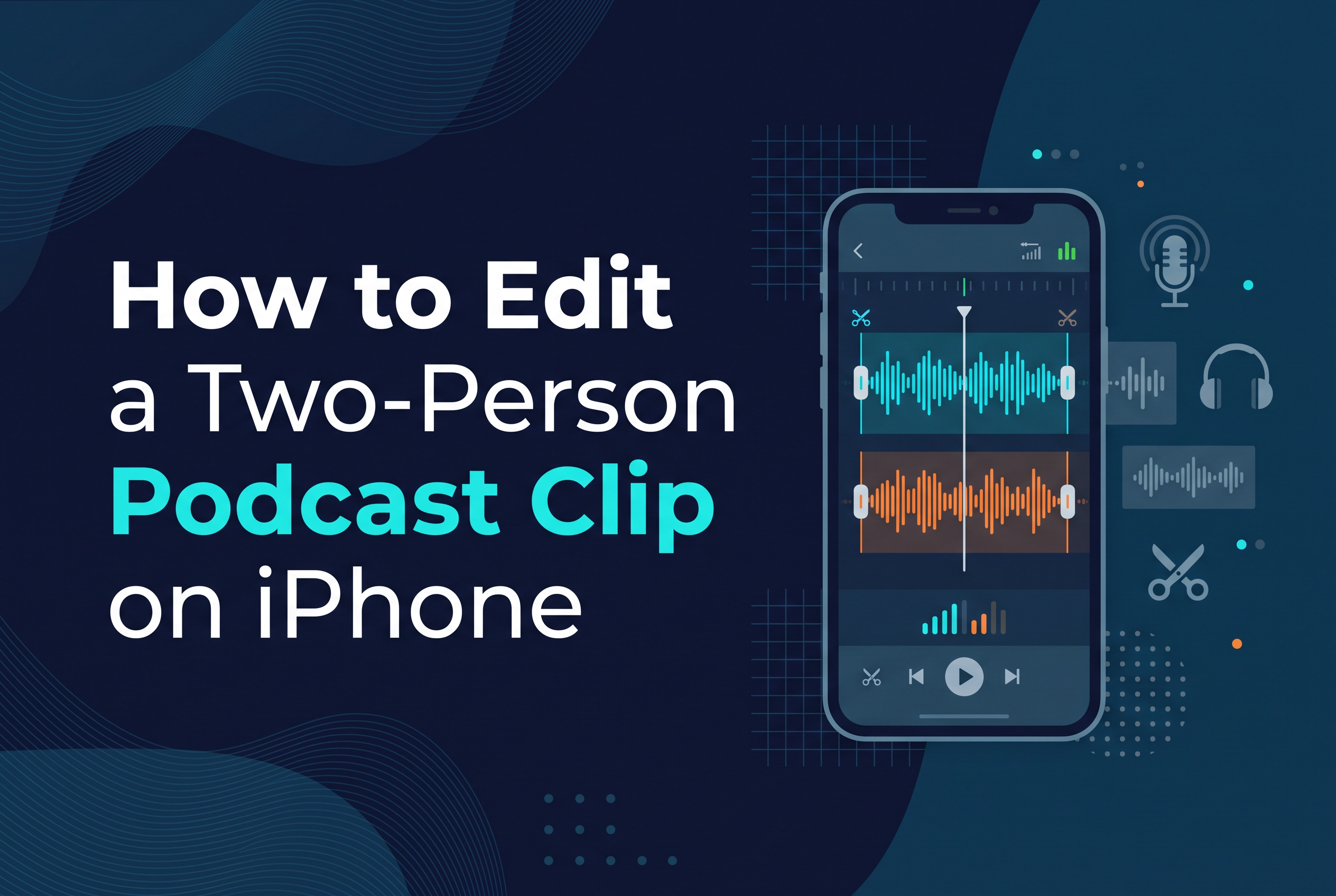
To edit a two-person podcast clip on iPhone, trim the moment in the Photos app, crop it to a vertical 9:16 frame, then use a dedicated editor to handle both speakers, clean up the dialogue and add captions before exporting. The Photos app covers the first two jobs. It won't split a clip or follow whoever is talking, so the rest needs another tool.
That gap is where most host-plus-guest clips go wrong. A solo clip has one face and one voice to manage. A two-person clip has two framings, overlapping speech and a conversation that often only makes sense with a few seconds of setup. This guide walks through the workflow in order, built for UK podcasters cutting clips for TikTok, Reels and Shorts.
What makes a two-person clip harder to edit than a solo one
A two-person clip is harder because you are editing a relationship, not a monologue. Two people share the frame, talk over each other and hand the point back and forth.
Three problems show up every time. First, framing: a wide shot of two people squeezed into a vertical frame makes both faces tiny. Second, crosstalk: the little "yeah, right" interjections that sound natural in a full episode turn into noise in a 30-second clip. Third, context: a guest's punchline lands badly if the host's question got trimmed off.
Fix these in order and the clip holds together. Skip one and viewers swipe in the first two seconds.
Step 1: Pick a moment that works without the rest of the episode
Pick a moment with a clear start, one idea and a landing line. The clip has to make sense to someone who has never heard your show.
Use a simple test: play the section cold, with no episode in your head. If you need to explain who is speaking or what "that" refers to, pick another moment. The best two-person clips usually start on a question or a bold claim and end on the answer or a laugh.
Aim for 20 to 60 seconds. Look for exchanges where the guest disagrees with the host, tells a short story or gives a specific number. Those carry a hook without any extra setup. If you want a wider process for finding these moments across a whole episode, How to Cut a Podcast into Short Clips covers it.
Step 2: Trim the clip on your iPhone (and what the Photos app can't do)
Yes, you can edit clips on an iPhone. The Photos app handles trimming and cropping without installing anything.
Open the video in Photos, tap Edit, drag the yellow handles on the timeline to the start and end of your moment, then tap Done. Choose Save Video as New Clip so your original recording stays untouched. To go vertical, stay in Edit, tap the crop control, choose a 9:16 portrait frame if it is offered, adjust the crop and tap Done.
Here is what Photos can't do. It can't split a clip into sections, so you can't cut out a dead pause in the middle. It can't switch framing between speakers. It can't remove filler words or add styled captions. For a one-take solo clip that is fine. For a two-person conversation you will hit the wall quickly, which is why steps 3 to 5 need a fuller editor. For more on what the built-in tools cover, see How to Edit Video on iPhone: Trim and Split.
Step 3: Handle both speakers: one wide shot, a vertical crop, or switching
You have three options for showing two speakers in a vertical frame. The right one depends on how your recording was shot.
One wide shot. Leave both people in frame. It is fast and keeps the energy of the conversation, but faces get small on a phone screen. It works best when you are seated close together.
A single vertical crop. Crop to one person, usually whoever carries the clip. You get the biggest face and the cleanest result, but the other speaker disappears while they talk.
Switching between speakers. Cut or reframe to whoever is talking. It looks the most professional and keeps attention up. It also needs an editor that can split a timeline and change the crop per section. The Photos app can't do this, so you need a dedicated editor.
My rule: if the clip is mostly one person talking with short interjections from the other, use a single crop. If it is a real back-and-forth, switch. If you only have one wide camera angle, crop in tight on whoever speaks first and keep it consistent rather than jumping around.
Step 4: Tidy the dialogue: crosstalk, pauses and filler words
Tidying dialogue means removing the overlaps, long pauses and filler words that are fine in a long episode but drag in a short clip.
Work through it in three passes. Cut dead air first: any pause longer than about half a second between speakers can usually go. Then deal with crosstalk. If both people speak at once, keep the line that carries the point and trim the other. Finally, remove filler words such as "um", "you know" and "like" when they sit on key lines.
Don't over-cut. Take out too much and two people stop sounding like they are in the same room, and the clip feels robotic. Leave a small natural gap at speaker changes.
Doing this by scrubbing a timeline is slow. Editing by transcript is quicker, because you delete the words and the audio and video follow. How to Remove Filler Words from Video on iPhone goes through the options.
Step 5: Add captions and export for vertical platforms
Add captions before you export. Most people watch short clips with the sound off, and a two-person clip is hard to follow without them.
Keep captions to one or two lines, large, and placed in the safe area away from the bottom of the screen where platform buttons sit. With two speakers, check that captions land on the right words during fast exchanges. Read the whole thing back before you publish, because auto captions slip on names, UK place names and regional accents. How Accurate Are Auto Captions? A Creator's Checklist gives a quick way to check, and How to Add Captions to iPhone Video covers the steps.
For export, keep the 9:16 vertical frame and save at the highest quality the app offers. The same file works for TikTok, Instagram Reels and YouTube Shorts, so you edit once and post three times.
FAQ: merging videos, editing after publishing, recording audio clips and why your iPhone won't edit
Can I merge two videos together on an iPhone? Yes, but not in the Photos app, which only trims one clip at a time. You need a video editor that lets you place two clips on one timeline. This matters for two-person podcasts when host and guest were filmed separately.
Can you edit a podcast after publishing? You can edit the audio file and re-upload it on most podcast hosts, but listeners who already downloaded the episode keep the old version. Short video clips are different. You can re-cut and repost them freely, so fix a clip's mistakes by posting a new version.
How to record just an audio clip on iPhone? Open the Voice Memos app and tap the red record button. Stop when you are done, then trim the recording from the three-dot menu. That gives you an audio-only clip you can drop into a video editor later.
Why won't my iPhone let me edit videos? Common causes are low storage, a video that hasn't finished downloading from iCloud, or a file shared through a messaging app that stripped its edit data. Free up space, wait for the full-resolution file to download, and try again.
Cutscript is coming soon to the App Store: join the waitlist
A good two-person clip comes down to three decisions: a moment that stands alone, a framing that shows who is talking, and dialogue cut tight enough to hold attention. The Photos app handles the trim and the crop, and everything after that needs a fuller editor. It is not on the App Store yet, so join the waitlist at sail.care/cutscript to be told when it launches.
For a related editing task, see AI Clip Maker or Manual Clips: How Podcasters Choose. Join the Cutscript waitlist.