How to Keep Captions Clear of TikTok Buttons
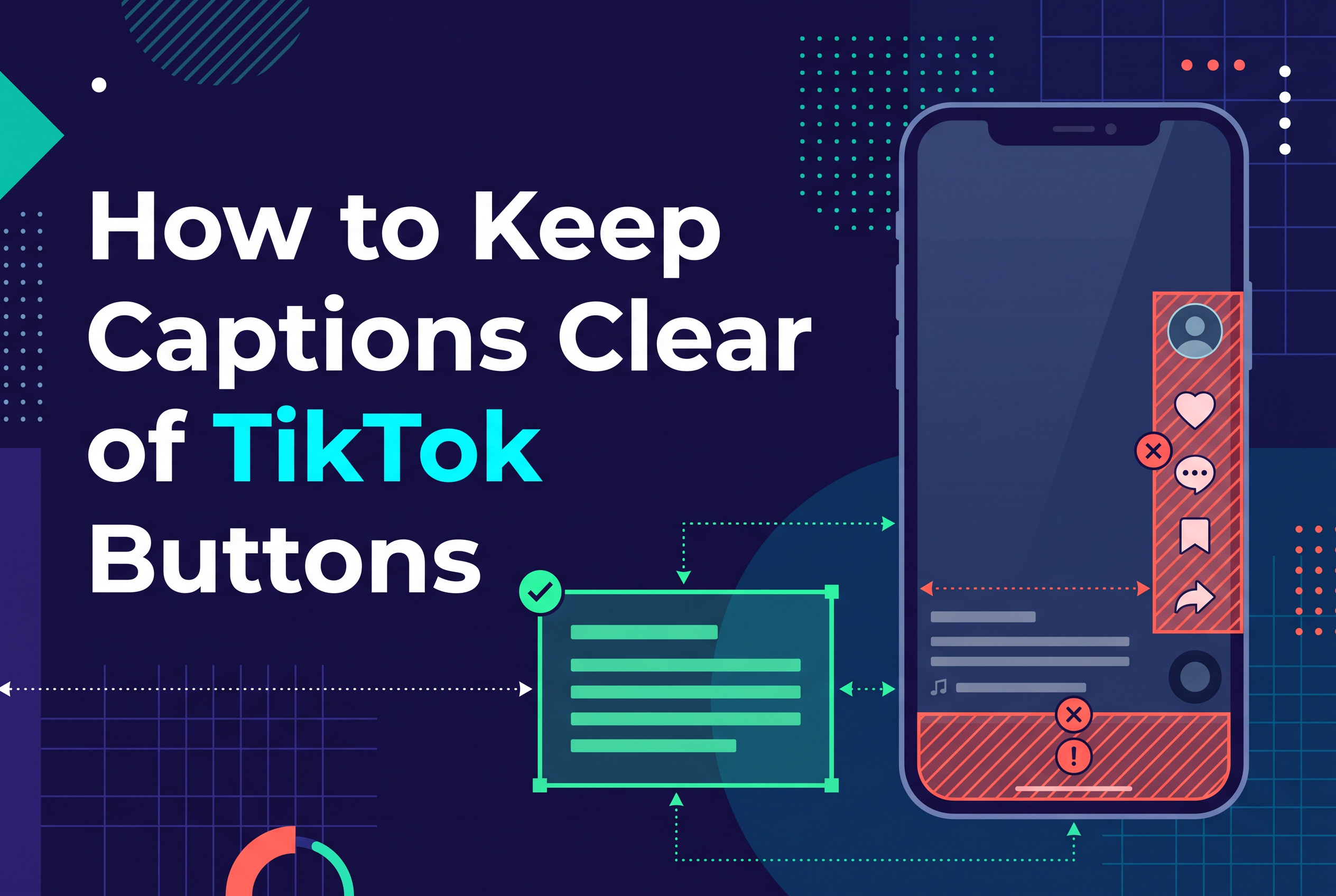
To keep captions clear of TikTok buttons, place them in the lower-middle of your 1080x1920 video, roughly 60 to 70 percent of the way down the frame, centred or slightly left, and well away from the right edge and the bottom strip where the username and description sit. TikTok's like, comment and share column covers the right side, and the description covers the bottom, so anything outside that middle band risks being hidden.
This guide covers why the overlap happens, the pixel numbers worth working to, how to position captions step by step on an iPhone, how to check in a TikTok draft before you post, and what to do when a caption is already covered or vanishing. It's written for UK podcasters and short-form creators editing talking-head clips.
Why TikTok's buttons cover your captions
TikTok's buttons cover your captions because the app draws its interface on top of your video, and your video isn't shrunk to make room. The like, comment, share and save column sits on the right. The username, description and sound label sit along the bottom left. The top carries the Following and For You tabs.
Your editing app shows you a clean 9:16 frame with none of that. So a caption that looks perfectly placed in the editor lands underneath a heart icon or a two-line description once it's live.
The overlay also changes. A long post description pushes the bottom text block higher, so a caption that cleared a short description can collide with a longer one. Layouts vary by device and app version too. That's why you work to a conservative zone and then check, instead of trusting one fixed number.
Where the safe zone is on a 1080x1920 video
On a 1080x1920 video, the safe zone varies with your caption length and format, but captions should generally be placed above the bottom interface and clear of the button rail on the right. For organic posts, a practical guide is to leave about 130 px at the top, 490 px at the bottom, 44 px at the left and 157 px at the right.
If you want the most cautious layout, borrow TikTok's stricter ad guidance: keep important text below y = 240 px, above y = 1,260 px, at least 120 px from the left, and out of the roughly 180 px button column on the right in the lower part of the frame.
Here's the quick reference:
| Edge | Organic post guide | Stricter ad-style guide |
|---|---|---|
| Top | 130 px clear | Text below y = 240 px |
| Bottom | 490 px clear | Text above y = 1,260 px |
| Left | 44 px clear | 120 px clear |
| Right | 157 px clear | 180 px button column avoided |
Treat these as starting points. Longer descriptions and different phones shift the real overlay. The numbers get you close, and the draft preview confirms it.
How to place captions in the lower-middle, step by step
Place captions in the lower-middle by dragging them to roughly 60 to 70 percent down the frame, centring them or nudging them slightly left, and keeping every line short enough to stay off the right edge. Here's the sequence:
Edit in 9:16. Set the project to 1080x1920 before you add any text, so your positions mean something.
Add your captions. If you're still generating them, see how to add captions to iPhone video for the options.
Drag the caption block up. Move it off the bottom edge until it sits in the 1,100 to 1,350 px band.
Centre or shift slightly left. Never push it toward the right, where the button column lives.
Cap line length. Two short lines beat one long line. Wide lines run into the buttons even when the block looks centred.
Keep your face clear if you can. On talking-head video, a caption that sits over your chin is a common complaint, so leave a little room between mouth and text.
Use one position throughout. Captions that jump around make the clip harder to read and harder to check.
Aim for a single consistent block that you never have to second-guess.
Check your captions in a TikTok draft before you post
Check your captions by uploading the video as a TikTok draft and previewing it full-screen with the description expanded. TikTok's own interface is the only accurate test, because your editor can't show you the real overlay.
Do this every time:
Upload the video and write your full description, including hashtags. A longer description raises the bottom overlay, so test with the real text, not a placeholder.
Open the preview full-screen and play it through. Pause on the busiest caption moments.
Look for any word touching the right-hand buttons, the username, or the description block.
Check on a second phone if you can. Screen sizes differ and the overlay shifts with them.
If anything overlaps, go back to your editor, move the caption block up a little, re-export and re-upload.
It takes a couple of minutes and saves you from posting a clip where the key word of the hook is hidden behind a share icon. If your clips come from long recordings, how to cut a podcast into short clips covers getting to the 9:16 stage cleanly.
Fixing captions that are already covered or disappearing
To fix captions that are already covered, you have to re-edit and re-post, because TikTok doesn't let you move burned-in text after publishing. Captions baked into the video are part of the picture. The only fix is a new export with the text repositioned into the lower-middle band.
If captions seem to disappear rather than get covered, check three things:
Timing. Text that ends too early or starts late looks like it vanished. Scrub through and confirm each caption lasts long enough to read.
Layering. In some editors a caption sits on a track beneath a clip or overlay, so it never shows. Bring it to the top layer.
Overlay collisions. A caption under the description block or button column is technically there but unreadable.
If you want text to disappear on purpose, like a hook line that should vanish after two seconds, set its end time in your editor so it leaves the screen on cue. For inaccurate words rather than placement, work through how accurate are auto captions before you re-export.
FAQ: side buttons, clearing captions, auto captions
The questions below come up most often. The short version: you can't remove TikTok's side buttons from your own view, but you can place your captions so they never sit underneath them. Clearing a caption means deleting or re-timing it in your editor if it's burned in, or toggling it off if it's a TikTok auto caption. The full answers are in the FAQ at the end of this article.
Next step: Cutscript is coming soon (join the waitlist)
It isn't on the App Store yet.
If you edit talking-head clips and are tired of repositioning captions by hand, you can join the waitlist at sail.care/cutscript. Until it launches, the placement method above works in any editor you already use.
Place captions in the lower-middle, then join the Cutscript waitlist
Captions only work if people can read them, and TikTok's interface decides that, not your editor. Keep them in the lower-middle band, test in a draft with the full description, and re-export when anything touches a button. When you're ready for a faster way to caption clips on iPhone, join the Cutscript waitlist at https://sail.care/cutscript. It's coming soon to the App Store and isn't available to download yet.
For a related editing task, see How to Correct Names in Auto Captions on iPhone. Join the Cutscript waitlist.
Best auto caption app for TikTok on iPhone
For TikTok captions on iPhone, preview the finished framing and keep key words clear of the buttons. Cutscript is an upcoming app that adds captions automatically on device. Join the Cutscript waitlist.
How to edit TikToks quickly on iPhone
To edit a TikTok quickly on iPhone, choose one idea, cut to the opening line and review captions before export. Cutscript is an upcoming option for making the cuts through the transcript. Join the Cutscript waitlist.