How to Get a Transcript of a TikTok Video
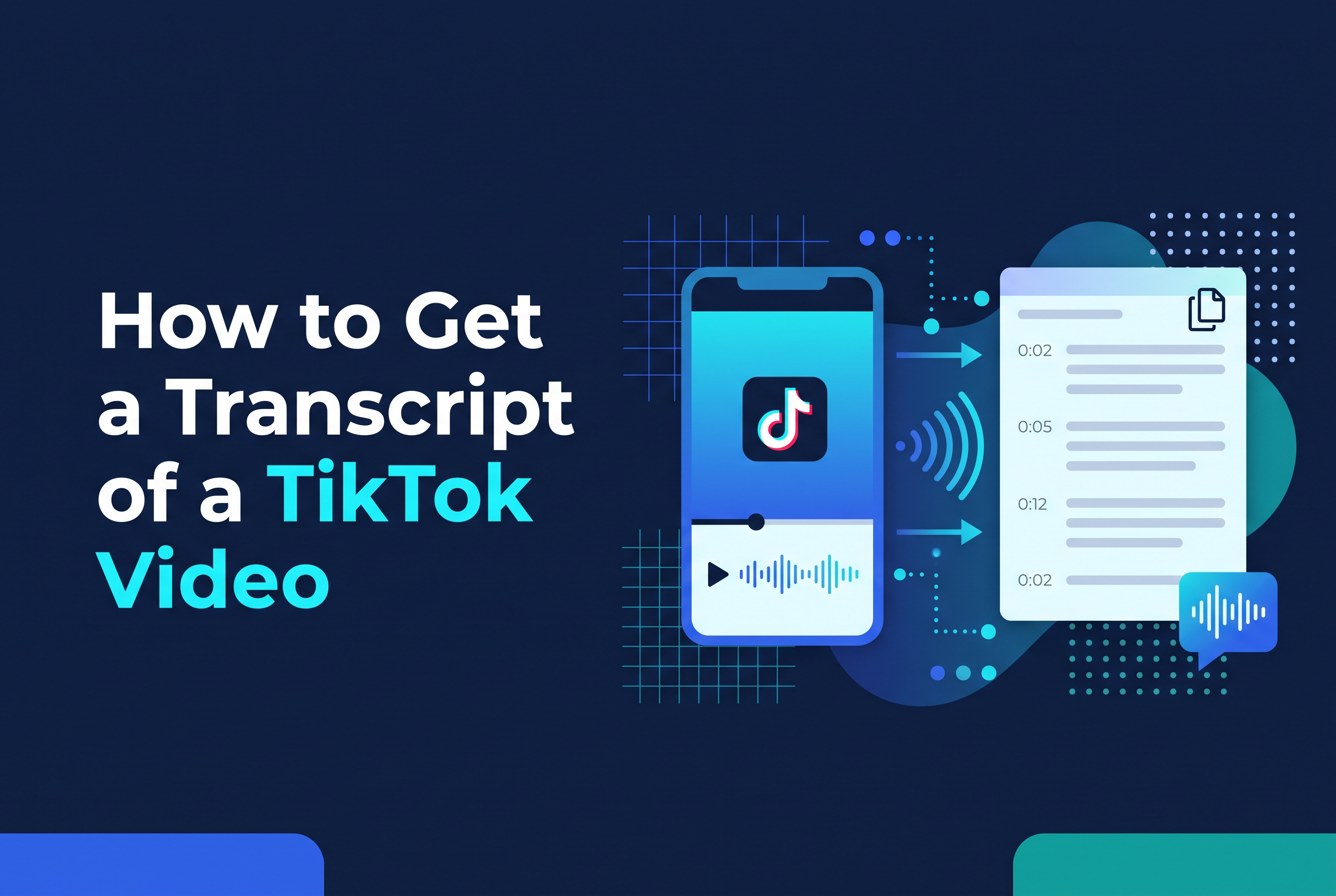
You get a TikTok transcript one of three ways: switch on captions in the app and read along, paste a public video link into a transcription tool, or save a video you have the rights to and upload the file to a speech-to-text tool. TikTok has no built-in way to copy or export the words.
That catches people out, because "TikTok transcript" means two different jobs. One is pulling the words from someone else's video for research. The other is getting text from your own footage so you can caption it, repurpose it or make it accessible. The routes differ, so this guide takes them in turn and is straight about what each one can and can't do.
What a TikTok transcript is (and what TikTok does and doesn't give you)
A TikTok transcript is the spoken audio of a video written out as plain text. TikTok gives you captions to view, but not that text as something you can copy, download or export.
Captions in the app are made to be watched, not lifted. A viewer can show them on screen, and a creator can generate them while editing. Neither gives you a transcript file. If you want the words as text, you need a second tool.
So decide which job you're doing before you start. Reading a video you don't own is a research problem. Getting the words from your own footage is a production problem, and you have more options there because you hold the original file.
Method 1: Show captions in the TikTok app to read along
The quickest route is already in the app. Open the video, tap Share, then Captions, and turn on Show captions if the option appears. You can then read along as the video plays.
This works for following what's being said, checking a quote, or watching with the sound off. It doesn't give you text to copy. There's no select-all, no export and no download of the captions.
Use this method when you only need to read, not reuse. If you need the words in a document, move on to Method 2 or 3. Captions only appear when they're available on that video, so some clips won't offer them at all.
Method 2: Paste a public video link into a transcription tool
For a public video, tap Share, then Copy link, and paste that link into a transcription tool that accepts TikTok URLs. The tool fetches the audio and returns text you can copy.
This is the fastest way to get words from someone else's public video without downloading anything. Treat the output as a draft. Automatic speech-to-text slips on proper nouns, slang, regional accents and any moment where two people talk at once.
A link-based tool may fail on private videos or ones you can't access. If that happens, you can't force it. Either use a file you're authorised to access (Method 3) or ask the creator to send you the video.
Method 3: Save a video you have rights to and upload the file
If you have the rights to a video, save it or screen-record it, then upload the file to a speech-to-text tool and export the text or a subtitle file.
This is more reliable than a link because the tool works from the actual audio instead of trying to fetch it. It also works for videos a link-based tool can't reach, provided you're allowed to use them.
Be strict about the rights part. Saving and transcribing your own footage, or footage a creator has given you permission to use, is fine. Lifting someone else's video to republish their words is a different matter, and a transcript doesn't change who owns the content.
How to get a transcript of your own TikTok videos
For your own videos, the best transcript comes from the original file, not from TikTok. There are two stages: captions before you post, and a transcript file afterwards.
Before posting, use Captions on TikTok's editing screen. It generates text from your audio, and you can review and correct it before the video goes live. Always read it through. Auto captions mishear names and slang, and a wrong caption is worse than none.
For a transcript you can keep, upload the original video, or a saved copy, to a transcription tool and export the text or subtitle file. Working from the camera roll original gives cleaner audio than a re-downloaded copy. If you record on an iPhone or iPad, our guide to adding captions to iPhone video covers that side in more detail.
Cleaning up the text: names, slang and overlapping speech
Every automatic transcript needs a human pass, and the errors cluster in three places: names, slang and overlapping speech.
Names first. Brand names, place names and people's names are the most common mistakes, so search the text for each one you know appears and fix it. Slang and regional speech come next. UK accents and colloquialisms are exactly where speech-to-text tends to guess wrong. Then overlapping speech. When two voices talk at once, the tool often merges or drops words, so listen to those moments again.
A fast routine: read the transcript while the video plays at normal speed, and fix anything that sounds different from what you see. Ten minutes on a short clip is usually enough. That step decides whether the text is usable.
Using a transcript: captions, repurposing and accessibility
A transcript earns its keep in three places: captions, repurposing and accessibility.
For captions, the text becomes on-screen subtitles so people can follow with the sound off, which is how plenty of people watch. For repurposing, a transcript lets you pull quotes for posts, turn a talking point into a newsletter paragraph, or find the best moments to cut. If you work from longer recordings, how to cut a podcast into short clips shows how the text helps you pick them. For accessibility, accurate captions and a text version mean deaf and hard-of-hearing viewers, and anyone in a noisy place, get the same content.
Accuracy matters most. A transcript you've corrected is safe to publish. One you haven't is a draft.
Where Cutscript fits: editing your own video by editing its transcript
Cutscript is for the creator side of this: your own footage, edited by editing its transcript. It's an iPhone and iPad app that's coming soon to the App Store, so you can't download it yet, but you can join the waitlist at sail.care/cutscript.
The idea is simple. Instead of scrubbing a timeline, you edit the words and the video follows. Cutscript automatically cuts filler words and adds captions. It runs on your device. It offers free editing, with Pro available at $4.17 per month when billed yearly ($49.99 annually).
It isn't a tool for reading other people's videos, and it won't replace a link-based transcriber for that job. If your goal is a cleaner cut of your own talking-head footage, see how to edit talking-head video on iPad or how to remove filler words from video on iPhone.
Pick your route, then join the Cutscript waitlist
A TikTok transcript is always a workaround, because TikTok gives you captions to watch, not text to keep. For someone else's public video, paste the link into a transcription tool. For your own footage, work from the original file and correct the result. If you make short-form video on iPhone or iPad and want to edit by editing the words, join the Cutscript waitlist at sail.care/cutscript.